Nothing to see...

A simple blog about all things in the world that is ridikulouse.

Technological steps, are man kinds greatest achievements

Not a Fighter, but a lover of Tech.

Love of the internet

The Internet is the final frontier for open connected networks, it promotes speech and advances knowledge for any mere person. The internet is fast becoming a need rather a want, and it is recognised by the UN as a necessity for the modern person.

Photography

Photography is more than just Art and expression, it is the manipulation of the light and provokes emotion and memories.

Have a look around

The articles on this blog represent my thoughts and views at the time of writing, I can always change my views through further education...please don't hold me against my views. Some of the articles have been written to assist anyone else with similar issues - it also helps me to remember. Hope you get something out of this.

Showing posts with label Fixes. Show all posts

Tuesday, June 9, 2015

The Debugger Cannot Continue Running the Process. Unable to Start Debugging

While I've been working with Xamarin I have noticed some frustrating errors from Xamarin Studio and now with Visual Studio.

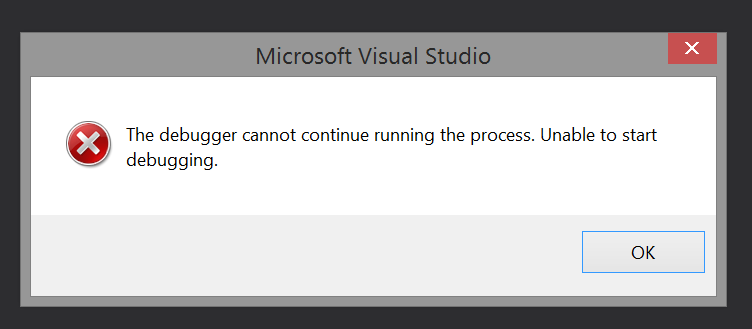
I was looking into Facebook Authentication and downloaded the master of Xamarin.Auth and tried to run the sample apps included and ran into a strange error:


Looking at the error it was hard to work out what went wrong, so I reverted to a friend to help with this.

The Fix


The solution contained two projects :

  1. Xamarin.Auth Sample (Android)
  2. Xamarin.Auth.Android
If you have the incorrect project setup as the startup project, in this case it is Xamarin.Auth.Android then you will get the error message. To fix this follow these steps:
  1. Right click on the Solution and goto Properties (it should be the last option or press Alt+Enter)
  2. Update the startup project to the project that should be starting up


I hope this helped. 

Saturday, May 30, 2015

VisualStudio 2013 - Xamarin - How to use Intellisense

When I installed Xamarin Business License, I noticed that intellisense was not working with the xml and axml files.

To get this to work you need to manually add two XSD files, once you have added them you will get Instellisense.

First open any random XML file, once you have opened it you will notice that the menu bar will have a new menu item called XML.

Next navigate to XML > Schemas > Add

Next enter the path in the filename box C:\Program Files (x86)\MSBuild\Xamarin\Android and hit enter

You should see two XSD files, select them both by holding shift and clicking on each.

Click on Open and you should see the files have been added in the XML Schemas dialog

Click OK in the Schema Dialog

and then close the XML file and reopen an XML or AXML and you should get intellisense as soon as you type <.

Hope this helps someone.

Tuesday, March 17, 2015

Intellisense in Razor View - Visual Studio 2013

Intellisense in VisualStudio is a god's gift to developers, its one of the things that make Visual Studio unbeatable for development. But on occasions Intellisense stops working for some reason, and I find that this normally happens while editing a view in an MVC application.

I tried a number of things, from building the project, to deleting the bin folder and re-doing the webconfig file, right through to re-creating the project again. That's how much it annoys me when Intellisense stops working.

I recently realized that this occurs when I edit the model backing the view. So when I'm editing the view and think that this would be better as a method in the model as opposed to doing calculations or think I actually need a another piece of data in the view, if I have the model available I quickly do an edit and then go back to the View and BAM! N.O M.O.R.E I.N.T.E.L.L.I.S.E.N.S.E.

So I closed the View, and then re-opened the view and there it was again - Intellisense was back again. I tried a couple of tests around this and this seems to be working.

So if you run in to a similar issue, before going through all of the work of re-creating the project try simple task of closing the View and re-opening it. It will save you a tonne of heartache and frustration.


Hope you find this helpful.